
Troubleshooting
Common issues and solutions when using the ThinkReview extension.
I installed the extension but can't see the AI button?
If you’re on github.com, gitlab.com, dev.azure.com, company.visualstudio.com, or bitbucket.org (without a custom domain) and the AI button doesn’t appear, this is very likely a simple Chrome/Edge caching issue.
What to do: Fully quit the browser Mac: Right-click the Chrome/Edge icon in the Dock and select Quit. Windows : Click the X icon in the top-right corner of the window. Then reopen again - The ThinkReview button should then appear on pull request or merge request pages.
If it still doesn’t appear, please report a bug along side any errors you see in the extension or the web console and we will look into it.
I added a custom domain for GitLab but the AI button didn't appear?
If you’re using self-hosted GitLab CE or GitLab EE, adding your custom domain in the extension should be the only step you need. As mentioned above, in many cases Chrome/Edge are just caching the DOM and all you need is to fully restart the browser. After that, the ThinkReview button should appear on merge request pages (on the bottom right).
If you’ve already done that and the ThinkReview button still doesn’t appear,This could be that your version of Gitlab is not fully supported yet by the extension or theres unexpected error please report a bug and we will look into it immediately.
To find the version of your GitLab:
- On the left sidebar, at the bottom, select Help → Help.
- The version is displayed at the top of the page.
Include that version when you report the bug.
Users of Azure on-premise (formerly Microsoft TFS)
Since version 1.4.14, we have added support for Azure on-premise. All you need is to add your Azure DevOps domain in the extension, in the Azure DevOps section.
The AI button should then appear on Azure DevOps pull request pages. If the ThinkReview button didn’t appear at all, it could be a simple caching issue: fully restart the browser and try again.
If you’ve already tried that, the issue could be the specific version of your Azure DevOps. Please:
- Go to any pull request page.
- Right-click and open Developer tools, then look at the Console for any errors.
- Copy those errors and report a bug. We will look into it immediately.
Please also send us the version of Azure DevOps you’re using. You can find it by:
- Clicking your profile picture (top right).
- Clicking Help in the menu.
This will show which Azure DevOps platform you’re on. For more details, see Look up your Azure DevOps platform and version.
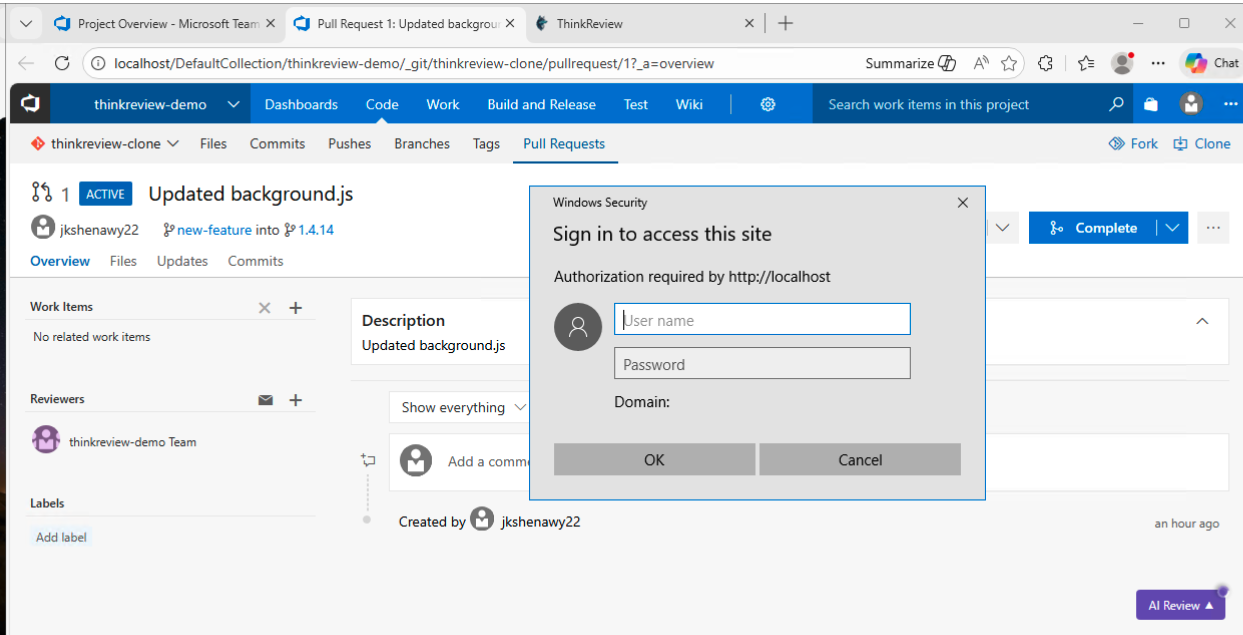
Repeated "Authorization required" popup on Azure DevOps on-premise (localhost or custom domain)
If you access Azure DevOps on-premise via localhost (for example by connecting to a VM) or through a custom domain, and on Pull Request pages the browser repeatedly shows a sign-in popup saying “Authorization required”, this usually means:
- The Azure DevOps token in the extension is missing, incorrect, or does not have the right permissions.
What to do:
- Click Cancel in the “Authorization required” popup.
- Create a new Personal Access Token in Azure DevOps with Code and Pull Requests (read-only) permissions.
- Open the ThinkReview extension, go to the Azure DevOps section, and paste the new token. Click Save.
After saving a valid token with the correct scopes, the popup should stop and the extension will work on your PR pages.
GitLab OAuth: need to reconnect after permissions change
If ThinkReview asks for new GitLab permissions (for example, to post merge request comments) and Reconnect in the portal does not show a fresh consent screen, revoke the old authorization in GitLab, then connect again:
- Open https://gitlab.com/-/user_settings/applications (GitLab → Preferences → Applications).
- Find ThinkReview under authorized applications and Revoke it.
- Go to portal.thinkreview.dev/integrations → GitLab.
- Click Connect with GitLab or Reconnect, and approve the new scopes.
Full steps: GitLab Integration — When ThinkReview asks for new permissions.
Self-hosted gateway: LLM HTTP 401 after it was working
If you use the Enterprise Gateway and reviews fail with LLM HTTP 401 (invalid subscription key or wrong API endpoint) after working earlier, the gateway has likely lost its LLM API key — often after an Azure Container Apps cold start when minReplicas is 0 and the key was only applied via the webapp (not stored as a persistent env secret).
Check https://YOUR-GATEWAY-URL/health — if secretsConfigured.llm is false, set LLM_API_KEY as a Container App secret (or Docker env var), set minReplicas: 1, and re-apply from Gateway settings if needed.
See the full guide: Self-Hosted Enterprise Gateway.