
Azure DevOps On-Premise (Custom Domain)
ThinkReview seamlessly integrates with Azure DevOps Server (On-Premises) hosted on custom domains, bringing AI-powered code reviews directly into your pull requests.
Step-by-Step Setup Guide
Section titled “Step-by-Step Setup Guide”1. Create a Personal Access Token
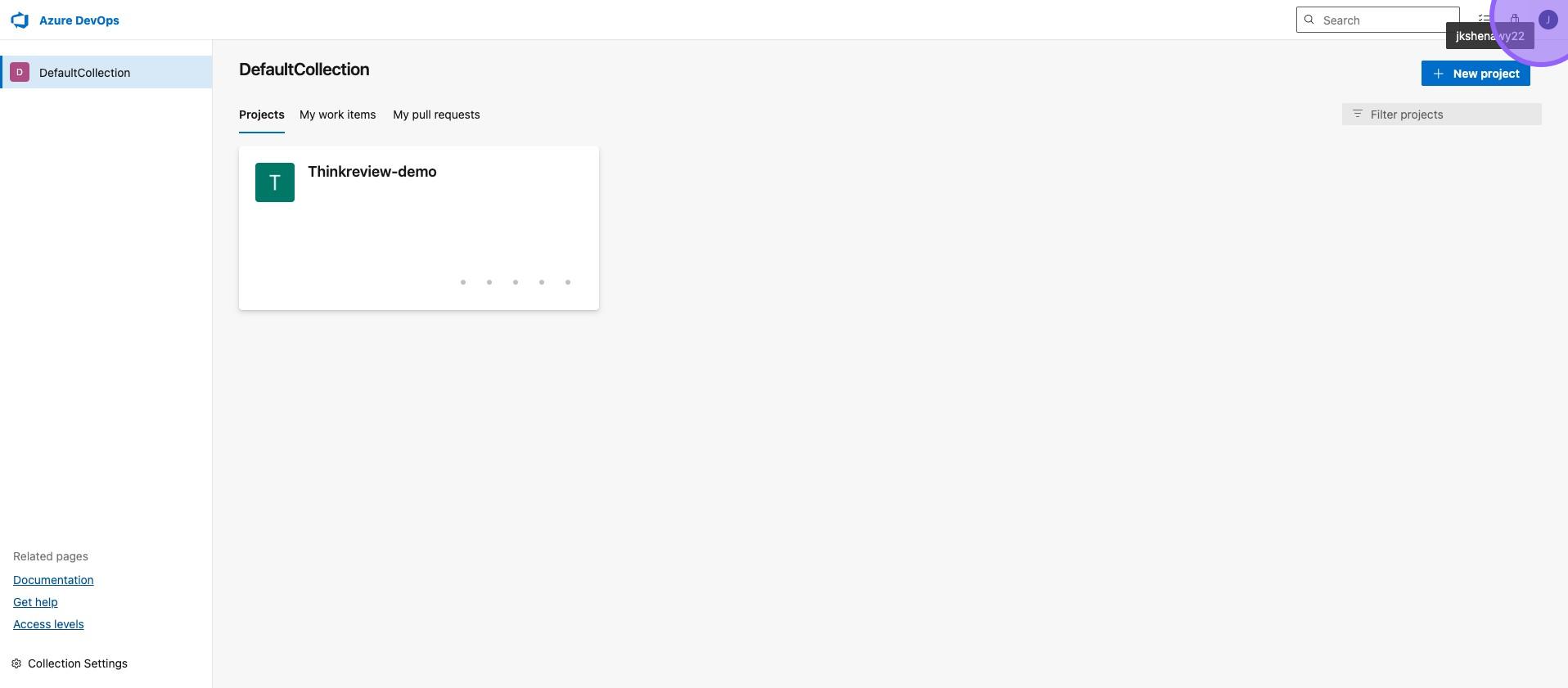
Section titled “1. Create a Personal Access Token”On Azure DevOps, click on your user profile at the top right.
2. Access Security Settings
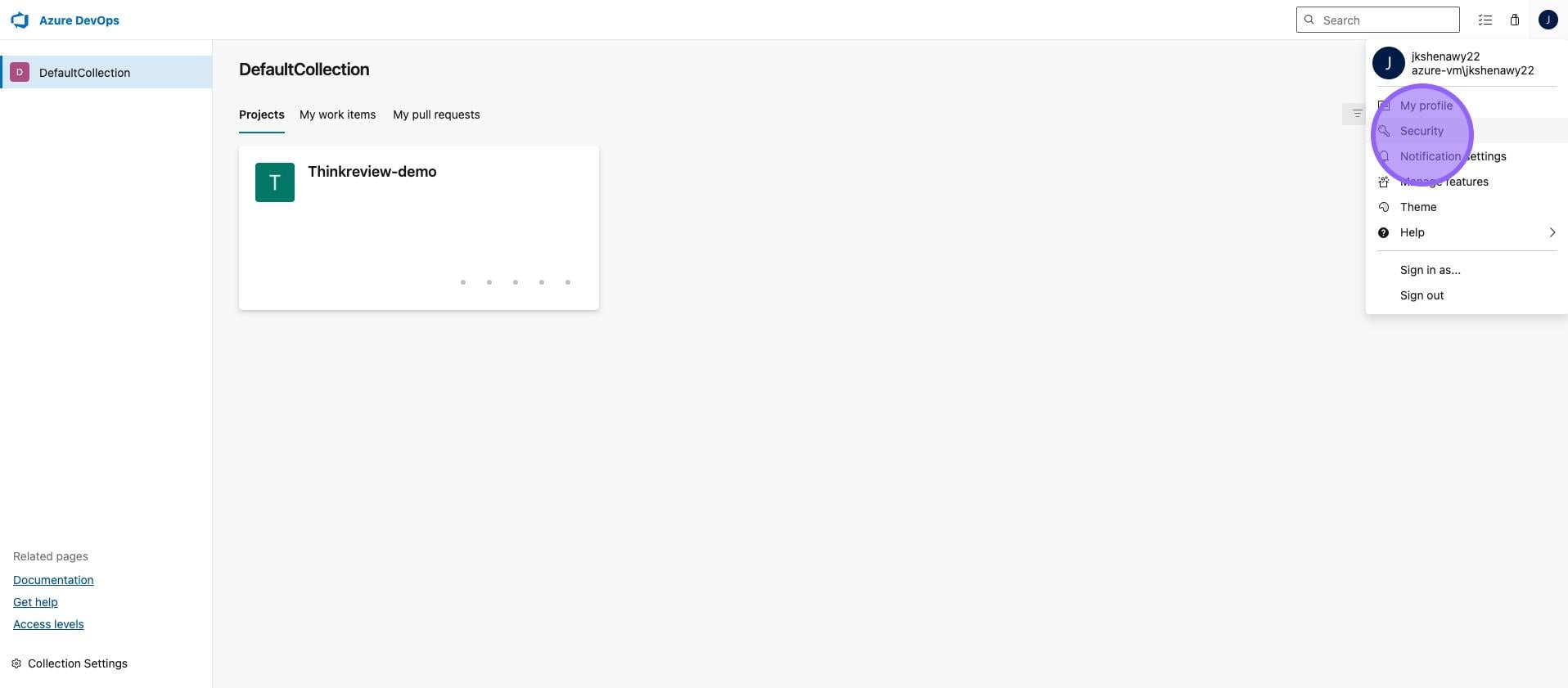
Section titled “2. Access Security Settings”Click on “Security”.
3. Create New Token
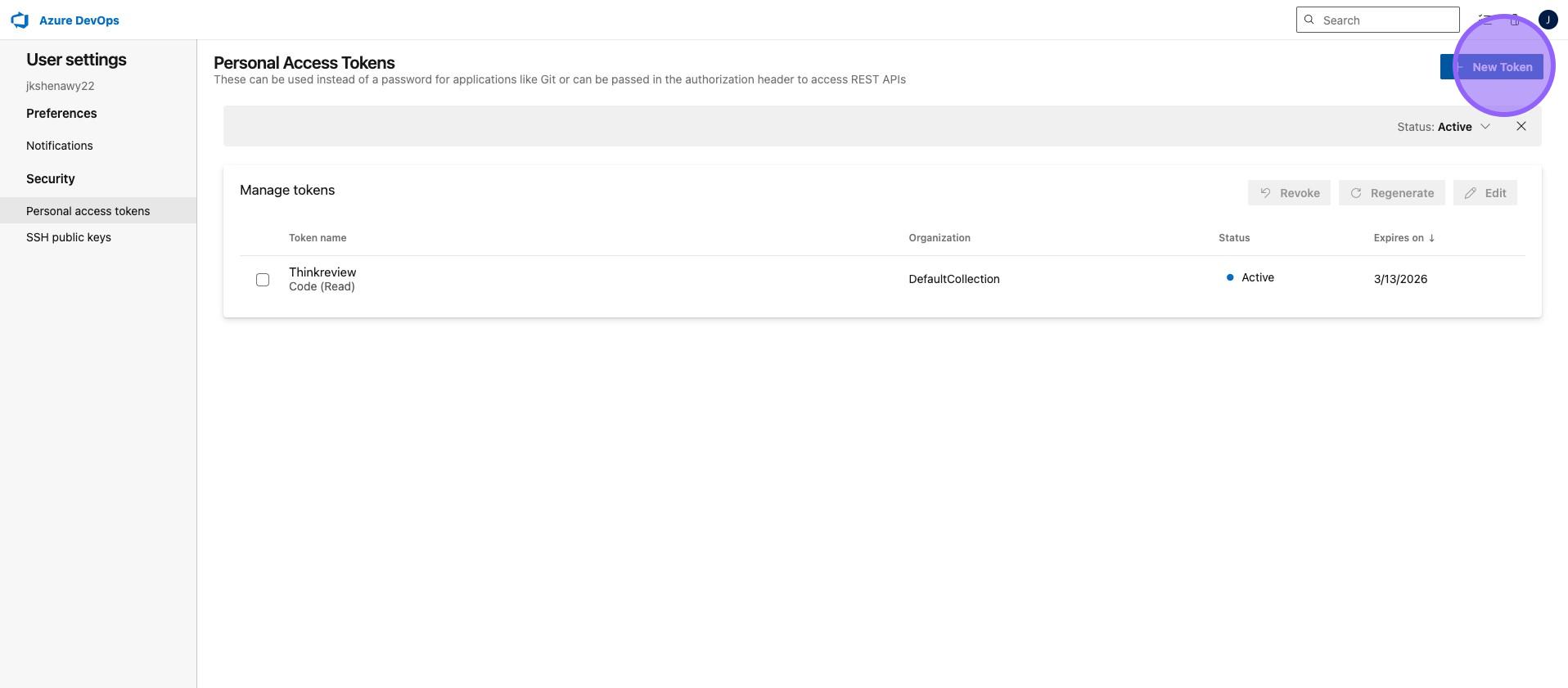
Section titled “3. Create New Token”Click on “New Token”.
4. Configure Token Name
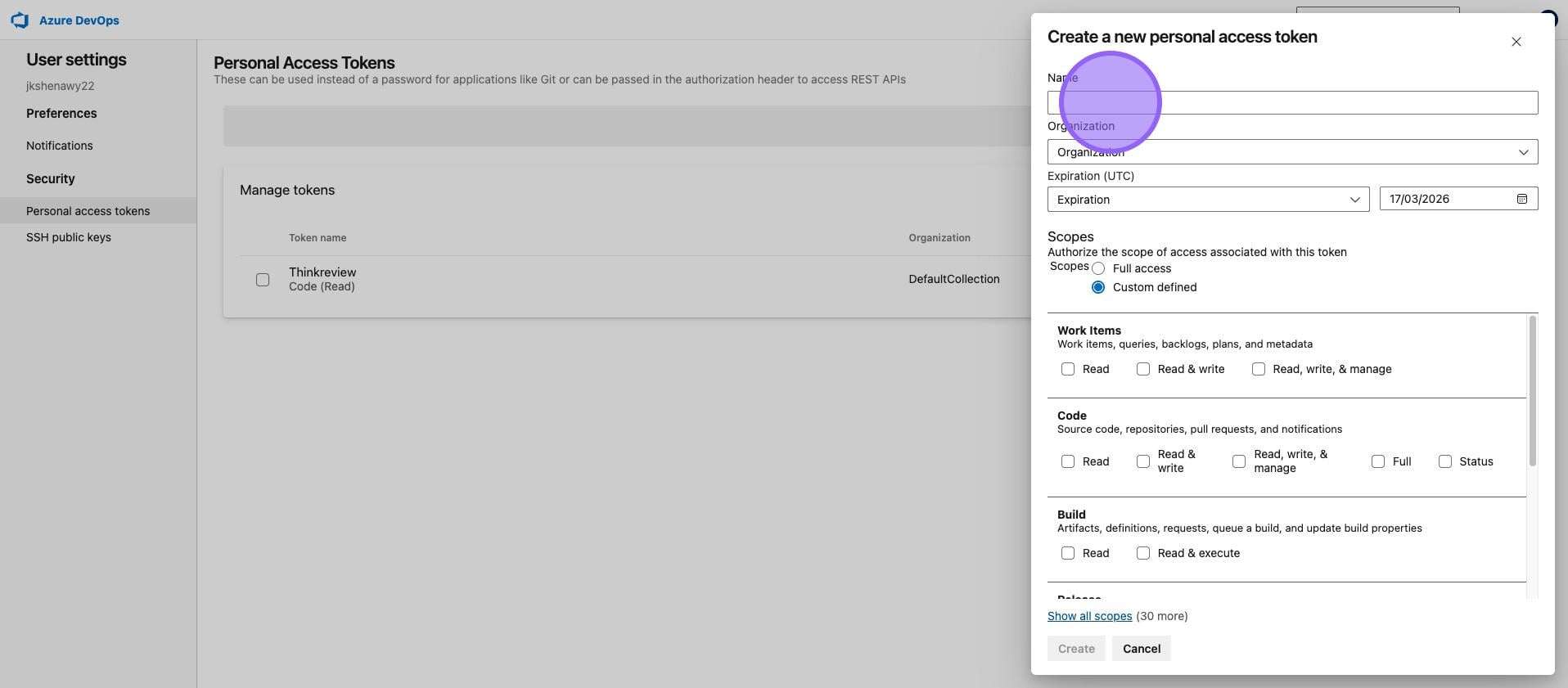
Section titled “4. Configure Token Name”Enter a name for your token (e.g., “ThinkReview”).
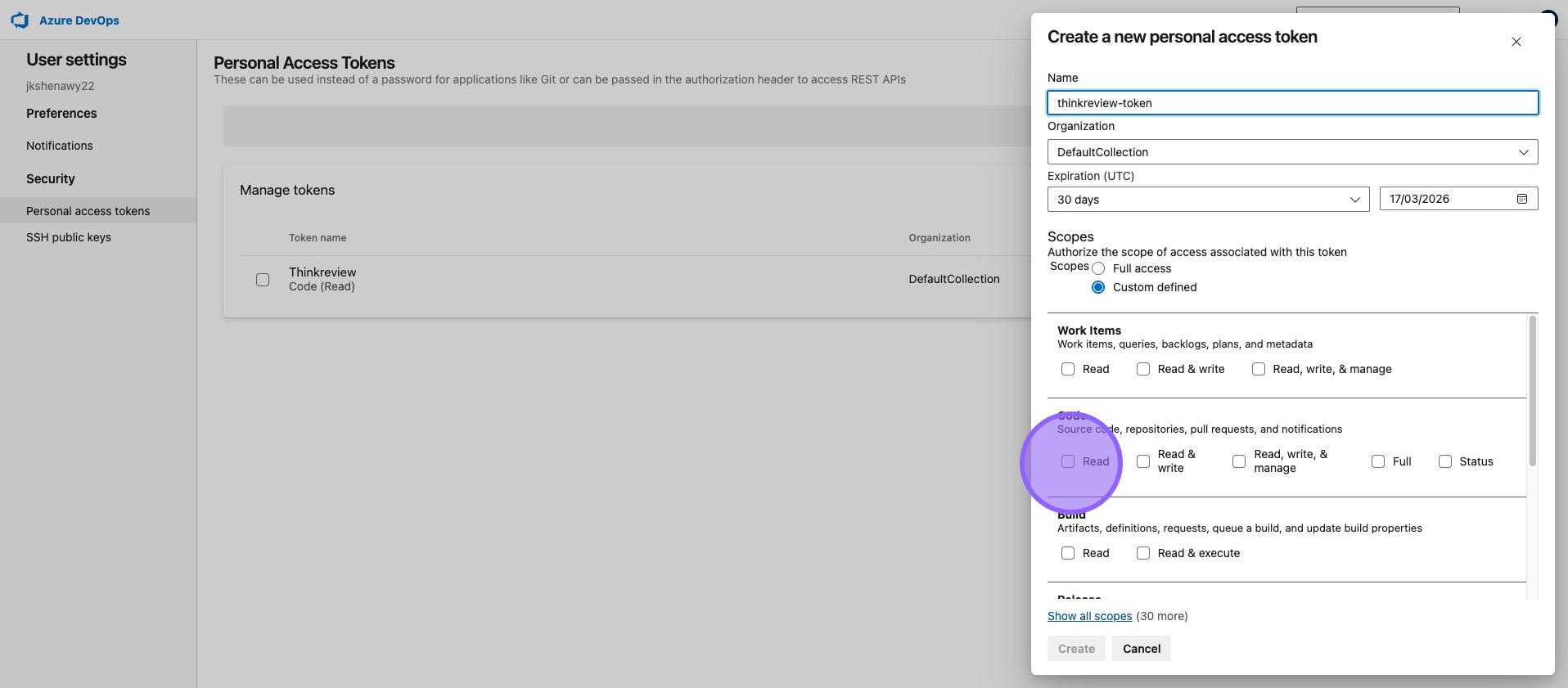
5. Set Token Permissions
Section titled “5. Set Token Permissions”Configure the appropriate scopes for the token. Make sure to grant Read access to Code.
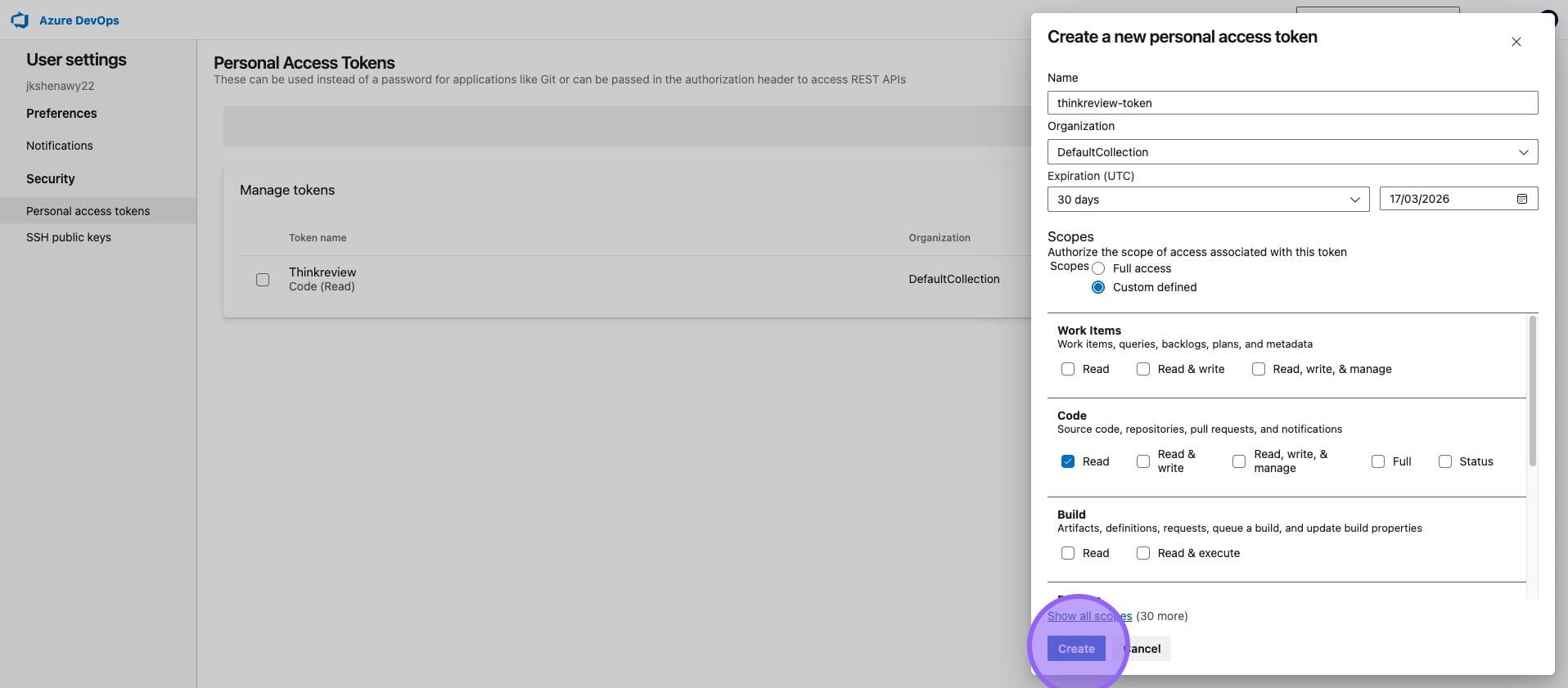
6. Create the Token
Section titled “6. Create the Token”Click on “Create”.
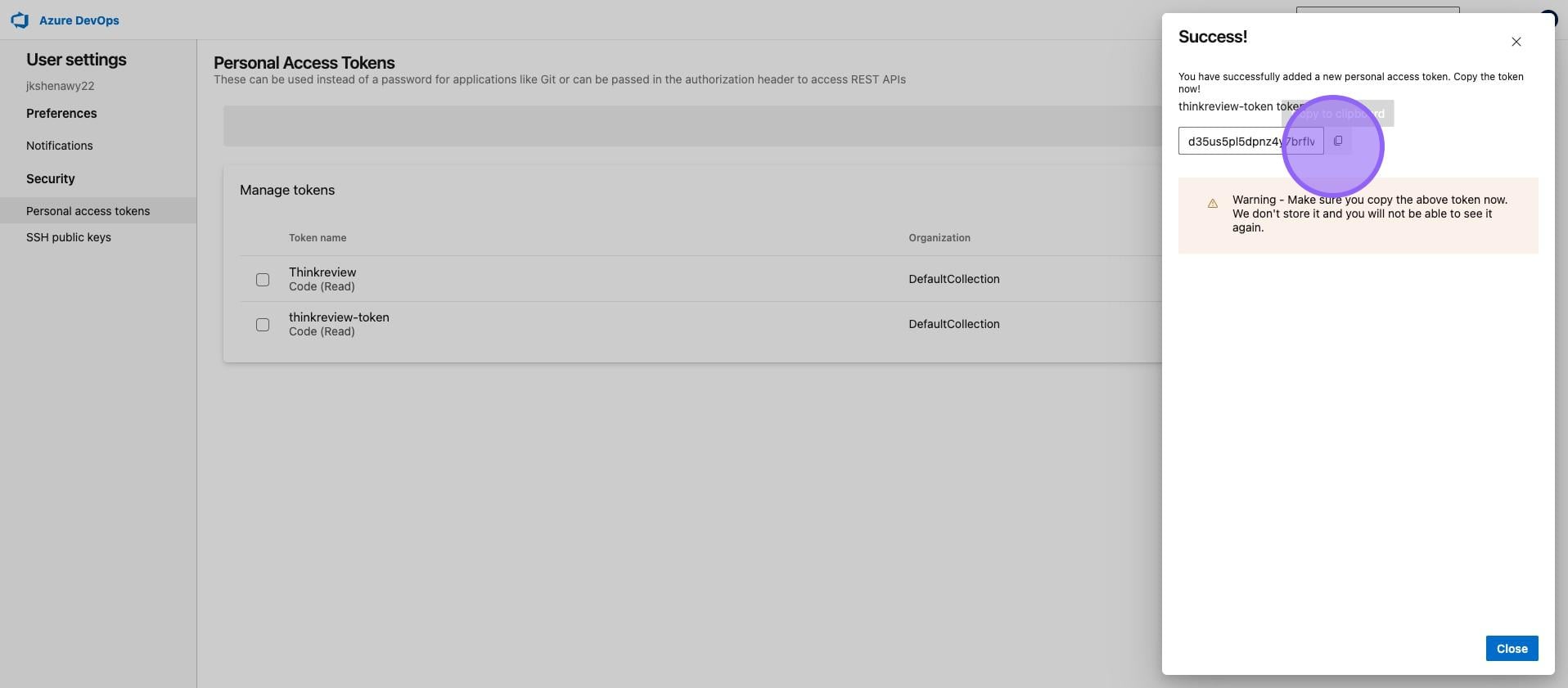
7. Copy Your Token
Section titled “7. Copy Your Token”Important: Copy the token immediately as it won’t be shown again.
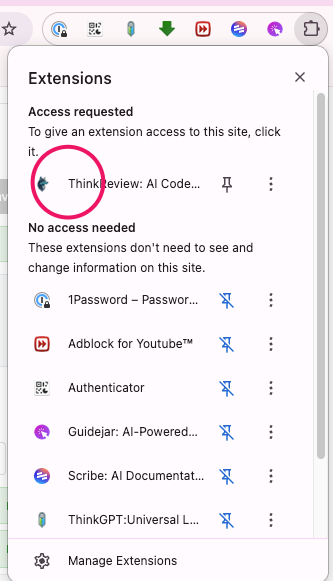
8. Open ThinkReview Extension
Section titled “8. Open ThinkReview Extension”Click on the ThinkReview extension icon in your browser toolbar.
9. Navigate to Settings
Section titled “9. Navigate to Settings”Go to the Settings section of the ThinkReview extension.
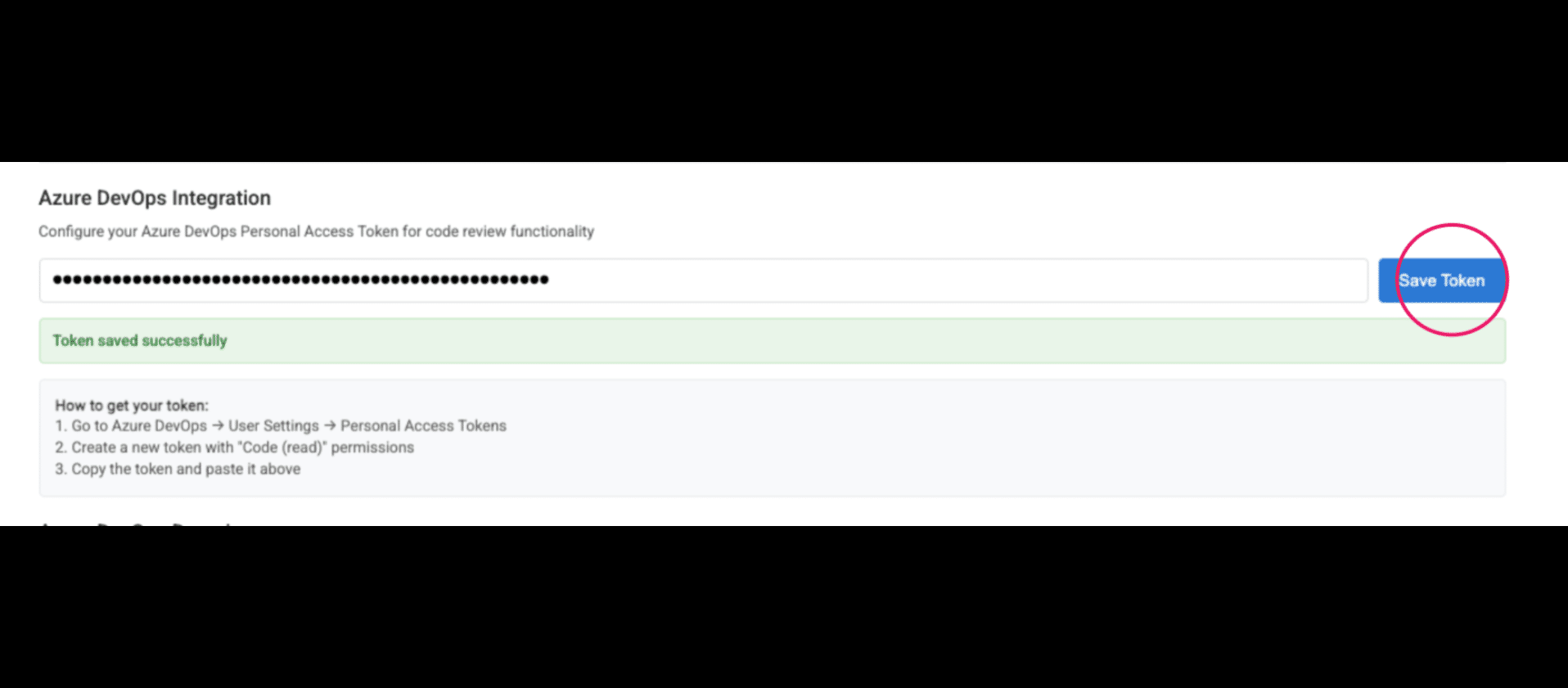
10. Configure DevOps Collection URL
Section titled “10. Configure DevOps Collection URL”Enter your Azure DevOps Collection URL. For on-premise installations, this will be your custom domain followed by the collection name.
Example: http://devops.thinkode.co.uk/DefaultCollection
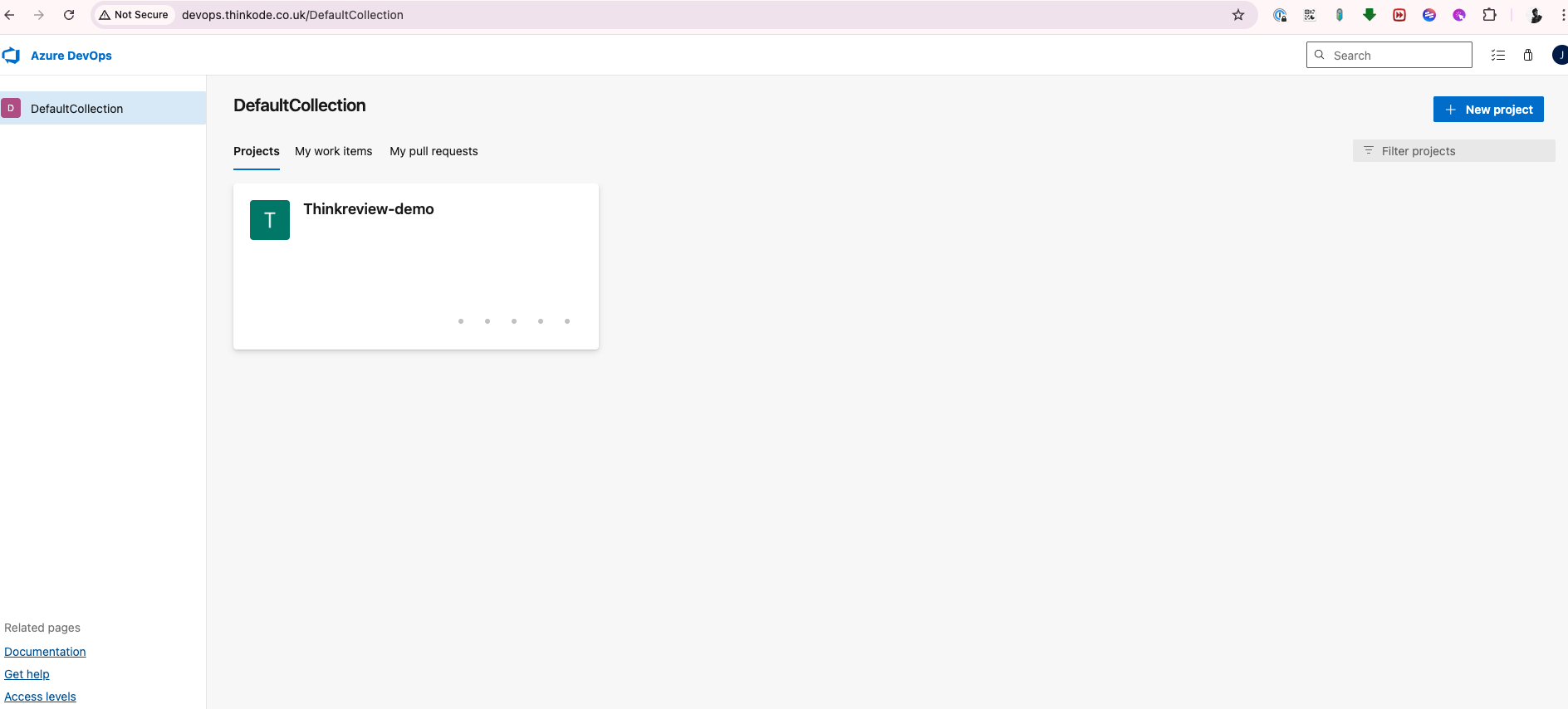
11. Restart Your Browser
Section titled “11. Restart Your Browser”After adding the permissions, you might need to fully restart your browser for the AI button to appear.
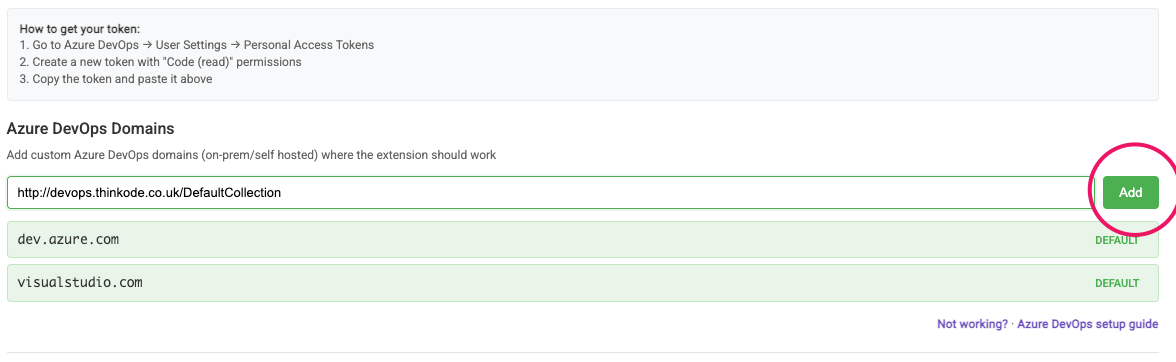
12. Start Using ThinkReview
Section titled “12. Start Using ThinkReview”Now navigate to any pull request and you should find the ThinkReview button on the bottom right.
Note: If the ThinkReview button doesn’t appear, try restarting your browser completely.
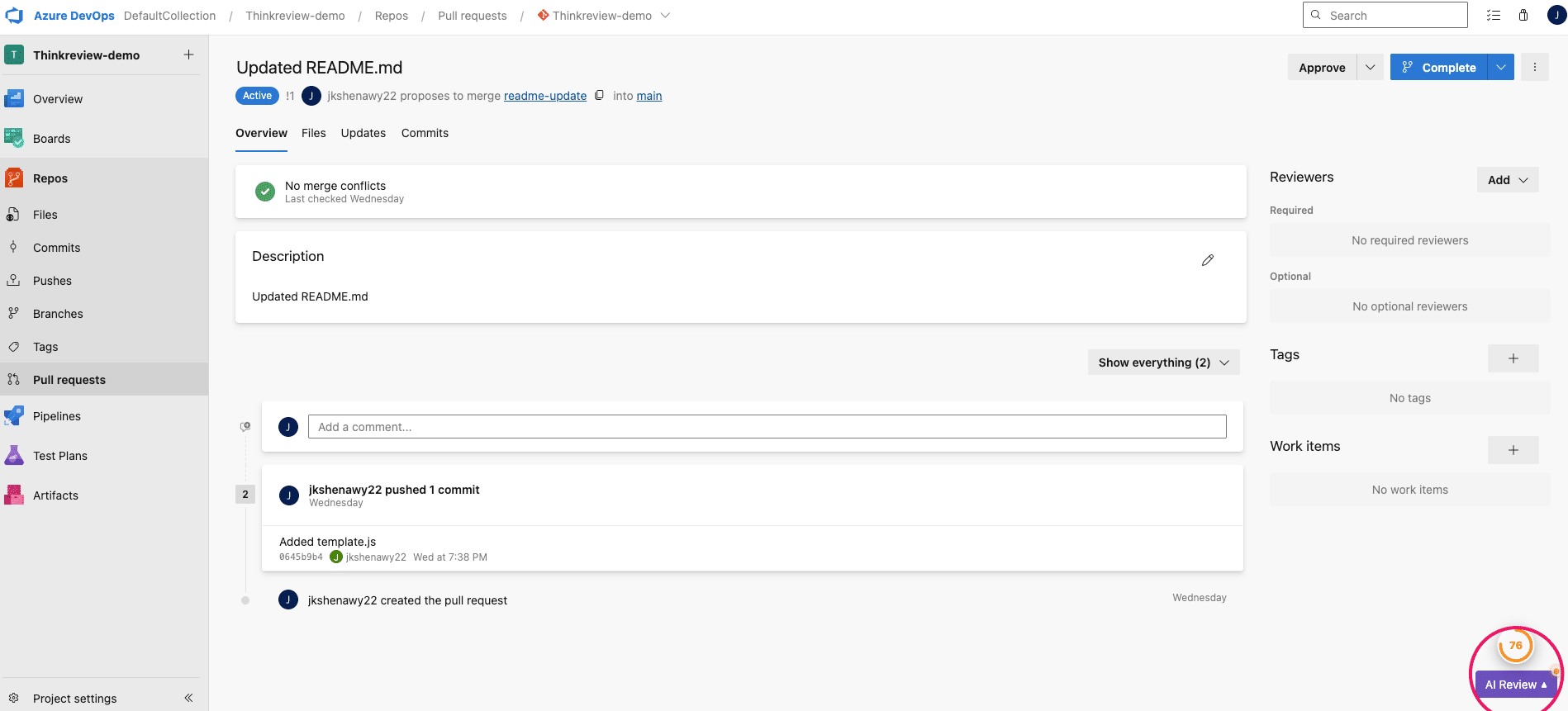
Troubleshooting
Section titled “Troubleshooting”- ThinkReview button not appearing: Fully restart your browser (not just refresh the page).
- Authentication errors: Verify your Personal Access Token has the correct Code (Read) permissions.
- Collection URL issues: Ensure your collection URL is correct and includes the collection name (e.g.,
/DefaultCollection).
Using ThinkReview with On-Premise Azure DevOps
Section titled “Using ThinkReview with On-Premise Azure DevOps”Once configured, ThinkReview works seamlessly with your on-premise Azure DevOps Server:
- Navigate to an active Pull Request in your Azure DevOps instance.
- Click the ThinkReview button on the bottom right of the page.
- The AI will analyze the diff and provide suggestions, security checks, and best practices directly within your on-premise Azure DevOps interface.